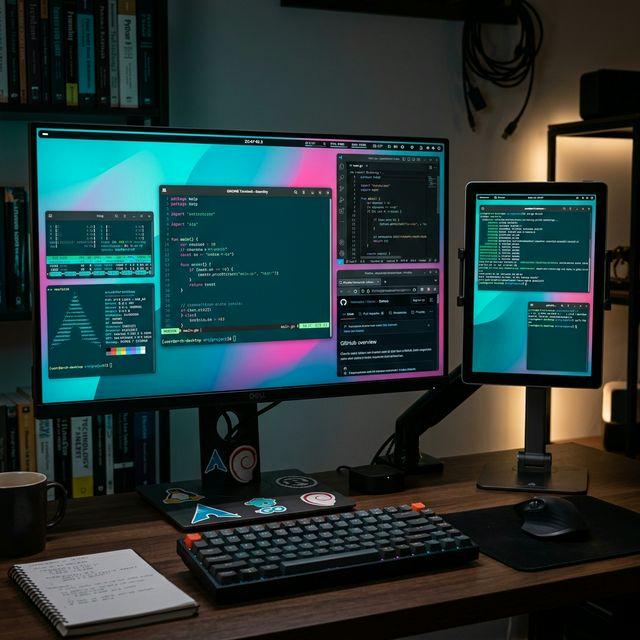
Best Second Monitor Apps for Linux in 2026 (Free & Open Source)
Linux users have been left behind by most second monitor apps. Here are the best free and open-source options for extending your Linux desktop to a tablet or spare screen in 2026.

If you use Linux as your primary operating system, you've probably noticed that most second monitor apps ignore you entirely. Duet Display? No Linux support. Apple Sidecar? Apple only. Spacedesk? Windows only. For years, Linux users who wanted to extend their display to a tablet or spare screen had to cobble together solutions with VNC, xrandr hacks, and virtual framebuffers.
That's finally changing. In 2026, there are real options for using a tablet as a second monitor on Linux — and some of the best ones are free and open source.
Option 1: BetterCast (Free) — Best Overall for Linux
BetterCast is the only full-featured, free second display app that supports Linux as a host machine alongside macOS and Windows. If you want a Sidecar or Duet Display equivalent on Linux, this is it.
Key features:
- Linux host support (alongside macOS and Windows)
- iOS and Android clients
- 0.02ms latency via P2P streaming over your local network
- 60 FPS at 4K resolution
- No account required, no internet needed
- 3MB install size
- Open source under GPL 3.0
How to set up BetterCast on Linux:
- Download BetterCast from the official website — AppImage, .deb, or .rpm packages are available
- Install or run the application on your Linux machine
- Install BetterCast on your iPad or Android tablet from the App Store or Play Store
- Connect both devices to the same Wi-Fi network
- Launch BetterCast on both devices — auto-discovery handles the rest
- Your tablet is now a second display. Arrange it in your display settings (GNOME Settings, KDE System Settings, or your preferred display manager)
BetterCast works across major distributions including Ubuntu, Fedora, Arch Linux, Linux Mint, Pop!_OS, and Debian. It supports both X11 and Wayland display servers.
Option 2: Deskreen (Free) — Browser-Based Approach
Deskreen is an open-source app that streams your desktop to any device with a web browser using WebRTC. It runs on Linux and doesn't require any client app installation.
Key features:
- Cross-platform host support including Linux
- Client is any web browser — no app needed
- End-to-end encryption
- Screen sharing and single-app sharing modes
Setup:
- Download Deskreen AppImage from GitHub
- Launch Deskreen — it generates a connection URL and QR code
- Open the URL in a browser on your tablet or phone
- Choose to share your full screen or a specific window
- Accept the connection
Pros:
- No client installation needed — any browser works
- Multi-device support
- Good for quick screen sharing
Cons:
- Requires a Virtual Display Adapter (VDA) dongle for true extended desktop. Without it, you can only mirror your existing screen or share individual windows — you can't create a new virtual display
- Higher latency than native solutions (~50–100ms due to WebRTC overhead)
- No touch input on the client
- Video quality depends on browser performance
Option 3: VirtScreen (Free) — Native Linux Solution
VirtScreen is a lightweight, Linux-native tool that creates a virtual screen using xrandr and streams it via VNC. It's designed specifically for Linux and doesn't try to be cross-platform.
Key features:
- Creates a virtual display using xrandr
- Streams via VNC protocol
- Lightweight and minimal
- Python-based, easy to inspect and modify
Setup:
- Install VirtScreen from your package manager or GitHub
- Launch VirtScreen and configure the virtual display resolution
- VirtScreen starts a VNC server for the virtual screen
- Connect to it using any VNC client on your tablet (RealVNC, bVNC, etc.)
Pros:
- Purpose-built for Linux
- Uses standard protocols (xrandr + VNC)
- Very lightweight
- No third-party servers involved
Cons:
- Requires some technical comfort with Linux display configuration
- VNC protocol has inherent latency compared to modern P2P streaming
- No native mobile client — you need a separate VNC viewer app
- Development has slowed — may not support the latest Wayland features
- X11 only — limited Wayland support
Option 4: Barrier / Input Leap — KVM for Existing Monitors
Barrier (and its fork Input Leap) aren't second-monitor apps in the traditional sense — they share your keyboard and mouse across multiple computers with their own monitors. But if you have a spare laptop or desktop with a screen, Barrier lets you control it seamlessly from your Linux machine.
Key features:
- Share one keyboard and mouse across multiple machines
- Cross-platform (Linux, macOS, Windows)
- Clipboard sharing between machines
- Open source
When to use Barrier/Input Leap instead:
- You have a spare laptop or PC with its own screen
- You want to control multiple computers, not extend one desktop
- You need to share clipboard between machines
This is a different use case from extending your desktop, but it's worth mentioning because many Linux users have spare machines that can serve as dedicated second screens.
Comparison Table
| Feature | BetterCast | Deskreen | VirtScreen | Barrier/Input Leap |
|---|---|---|---|---|
| Price | Free | Free | Free | Free |
| Type | Second display | Screen share / extend | Virtual display + VNC | KVM (keyboard/mouse) |
| Linux Host | Yes | Yes | Yes | Yes |
| Client Apps | iOS, Android | Any browser | Any VNC viewer | Own monitor needed |
| Latency | 0.02ms | 50–100ms | 30–80ms | N/A (native display) |
| True Extending | Yes | Needs VDA dongle | Yes | N/A |
| Wayland Support | Yes | Partial | No (X11 only) | Partial |
| Open Source | Yes (GPL 3.0) | Yes | Yes | Yes |
| Ease of Setup | Easy | Easy | Moderate | Moderate |
Tips for Linux Second Monitor Setup
Display Server: Wayland vs X11
Your display server affects which tools work and how well:
- X11: All four options above work on X11. VirtScreen relies on xrandr, which is X11-specific. Most tools have the best compatibility with X11
- Wayland: BetterCast supports Wayland. Deskreen has partial Wayland support (screen capture works but has quirks on some compositors). VirtScreen does not support Wayland. If you're on Wayland, BetterCast is your most reliable option
Display Manager Configuration
After connecting a second-display app, configure the layout:
- GNOME: Settings → Displays → drag to arrange, set resolution and scaling
- KDE Plasma: System Settings → Display and Monitor → drag to arrange
- i3/Sway: Use xrandr (X11) or swaymsg (Sway/Wayland) to configure the virtual output
- XFCE: Settings → Display → arrange monitors
Network Optimization
For the lowest latency on Linux:
- Use 5GHz Wi-Fi — avoid the congested 2.4GHz band
- Connect your Linux machine via Ethernet if possible — only the client (tablet) needs Wi-Fi
- Close bandwidth-heavy applications during use
- If your firewall (ufw, firewalld) blocks connections, add exceptions for the second-display app's port
Frequently Asked Questions
Does BetterCast work on Wayland?
Yes. BetterCast supports both X11 and Wayland display servers on Linux. It's one of the few second-display apps with proper Wayland compatibility. If you're running GNOME on Wayland (the default on Ubuntu 22.04+ and Fedora), BetterCast works without any special configuration.
Can I use my iPad as a second monitor on Linux?
Yes. BetterCast is the best option for this — it supports Linux as the host and iPad as the client, with 0.02ms latency and 60 FPS. Alternatively, Deskreen lets you stream to any browser on your iPad, though with higher latency and no true extended desktop without a VDA dongle.
Which Linux distributions are supported?
BetterCast supports all major Linux distributions including Ubuntu, Fedora, Arch Linux, Linux Mint, Pop!_OS, Debian, openSUSE, and Manjaro. It's distributed as an AppImage (works on any distro), .deb (Debian/Ubuntu), and .rpm (Fedora/openSUSE). Deskreen and VirtScreen are similarly available as AppImages or through package managers. Any modern Linux distribution running a supported display server (X11 or Wayland) should work.
Ready to try BetterCast?
Free, open-source, and works on every platform. Turn any device into a second monitor in under a minute.