
How to Set Up a Dual Monitor Workspace Without Buying a Second Screen
Learn how to create a dual monitor setup using your existing iPad, tablet, phone, or spare laptop. No need to buy an external monitor.
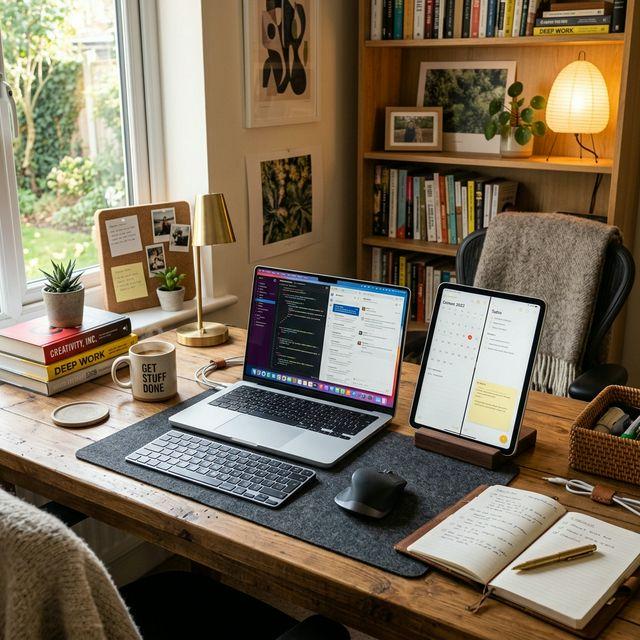
A dual monitor workspace can transform your productivity, but a dedicated second monitor costs $200–$500 and takes up desk space. What if you could get the same productivity boost using devices you already own?
Here's how to turn your tablet, phone, or spare laptop into a second screen — no extra hardware purchase required.
Why Dual Monitors Matter
Research consistently shows that a second screen improves productivity:
- Reduced context switching — Keep reference material visible while you work
- Easier multitasking — Monitor Slack or email on one screen while coding on another
- Better workflow for creatives — Preview on one screen, edit on another
- More screen real estate for developers — Terminal on one display, code editor on another
The problem? A good portable monitor costs $200–$400, and a quality desktop display starts at $300. But you probably already have a device that can serve as a second screen.
Devices You Can Use as a Second Monitor
Almost any screen-equipped device can become a second display:
- iPad or Android tablet — The most popular choice, offering 10–13 inches of screen space
- Smartphone — Smaller, but useful for dashboards, chat, or music controls
- Spare laptop — An old MacBook or Windows laptop works perfectly
- E-readers with web browsers — Even a Kindle Fire can work in a pinch
Setting Up Your Dual Monitor Workspace
Step 1: Choose Your Software
You need software on both your computer (the "host") and your secondary device (the "client"). Here are your best options:
BetterCast (Free, All Platforms) The most versatile option. Works on macOS, Windows, and Linux as the host, with iOS and Android clients. No account needed, no internet required. Just install and connect over your local network.
Apple Sidecar (Free, Apple Only) If you have a Mac and iPad, Sidecar works out of the box with no extra software.
Spacedesk (Free, Windows Only) A solid choice if your host machine runs Windows. Supports iOS, Android, and browser-based clients.
Step 2: Optimize Your Network
For wireless second-screen setups, your network quality directly affects performance:
- Use 5GHz Wi-Fi — The 2.4GHz band is often congested and adds latency
- Keep devices close to the router — Or better, connect your host via ethernet
- Reduce network congestion — Pause large downloads during use
- Consider USB — If your app supports it, a direct USB connection eliminates wireless latency entirely
Step 3: Configure Display Settings
Once connected, configure your display arrangement:
On macOS: System Settings > Displays > Arrangement. Drag to position the secondary display relative to your primary.
On Windows: Settings > System > Display. Drag to arrange. Choose "Extend these displays."
On Linux: Your display manager (GNOME Settings, KDE Display Config, etc.) should detect the new display automatically.
Step 4: Optimize the Secondary Display
- Match scaling — If your tablet has a high-DPI display, set appropriate scaling so text isn't too small
- Choose the right resolution — Higher resolution looks sharper but requires more bandwidth. Start with your device's native resolution and reduce if you see lag
- Position logically — Place the secondary display where you'd naturally glance (left, right, or above your primary monitor)
Best Use Cases for a Device-Based Second Monitor
For Developers
- Terminal / console on the second screen
- Documentation browser on the iPad while coding on the main display
- Git diff view alongside your editor
For Remote Workers
- Video call on the tablet while sharing your main screen
- Slack / Teams on the second display
- Calendar and task list always visible
For Creatives
- Reference images on the tablet while designing
- Preview window on the second screen
- Color palette and tool panels on the extended display
For Students
- Lecture notes or textbook on the tablet
- Writing or coding on the main screen
- Research papers side by side
Tips for the Best Experience
- Keep your tablet charged — Second-screen apps consume battery. Plug in if possible
- Use a stand — Prop your tablet at eye level to avoid neck strain
- Close unnecessary apps — On both devices, close other apps to maximize performance
- Update your software — Second-screen apps frequently improve performance in updates
- Try BetterCast first — It's free, tiny (3MB), and works on everything. No reason not to start here
The Bottom Line
You don't need to buy a second monitor to get a dual-screen setup. Your existing iPad, tablet, or phone can do the job — and with apps like BetterCast, it's completely free. Try it today and see how much more productive you can be.
Ready to try BetterCast?
Free, open-source, and works on every platform. Turn any device into a second monitor in under a minute.