
How to Use Your Phone as a Second Monitor (iPhone & Android)
Turn your iPhone or Android phone into a second monitor for your PC, Mac, or Linux machine. Learn the best apps, ideal use cases, and tips for a phone-sized second screen.
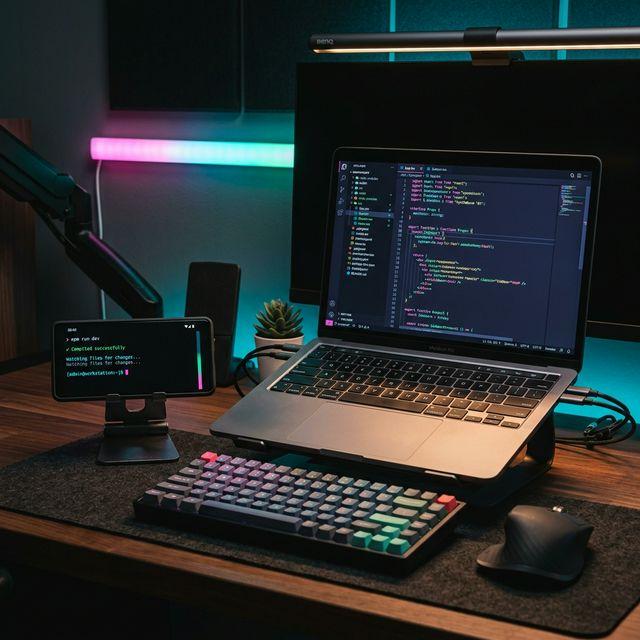
Your phone might be the last device you'd think of as a second monitor — but it's surprisingly useful for the right tasks. A 6-inch screen won't replace a full desktop display, but it can serve as a dedicated space for chat windows, music controls, dashboards, terminal output, or timers. And since you already own it, the cost is zero.
Here's how to turn your iPhone or Android phone into a functional second monitor, which apps to use, and when it actually makes sense.
Best Use Cases for a Phone-Sized Second Monitor
A phone screen is small, so the key is using it for content that doesn't need a lot of space:
- Chat and messaging — Keep Slack, Discord, or Teams visible without cluttering your main screen
- Music and podcast controls — Spotify, Apple Music, or YouTube on the second screen
- Dashboards and monitoring — System stats, analytics, or server health panels
- Terminal or console output — Watch logs scroll while you code on the main display
- Timers and clocks — Pomodoro timers, meeting countdowns, or world clocks
- Reference notes — A quick-reference cheat sheet, API docs, or checklist
- Video calls — Keep a small video feed visible while working on your primary display
Method 1: BetterCast (Free, iPhone & Android)
BetterCast is a free, open-source app that works with both iPhone and Android as second display clients. It supports macOS, Windows, and Linux as host machines.
How to set it up:
- Download BetterCast on your computer — just 3MB
- Install BetterCast on your iPhone (App Store) or Android phone (Play Store)
- Connect both devices to the same Wi-Fi network
- Launch BetterCast on both devices — they find each other automatically
- Your phone is now a second display
Why it's the best option for phones:
- Works with both iPhone and Android — one app for everything
- Very low latency, 60 FPS at 4K via direct P2P streaming
- No account, no subscription, no internet required
- 3MB install size won't eat your phone's storage
- Open source (GPL 3.0)
Method 2: Spacedesk (Free, Windows Host Only)
Spacedesk works with iPhones and Android phones as clients, but only supports Windows as the host machine.
Setup: Install the Spacedesk driver on your Windows PC, install the app on your phone, connect to the same network, and tap to connect.
Pros:
- Free for personal use
- Supports multiple simultaneous displays
Cons:
- Windows-only host — no Mac or Linux
- Higher latency than BetterCast
- Commercial use requires a paid license
Method 3: Duet Display ($4–6/month)
Duet Display supports iPhones and Android phones as clients with Mac and Windows hosts.
Setup: Install Duet on your computer and phone, create an account, subscribe, and connect.
Pros:
- Cross-platform (Mac and Windows hosts)
- USB connection option for iPhones
- Remote desktop access
Cons:
- $4–6/month subscription required
- Account and internet needed for licensing
- No Linux host support
- 50–100MB install size
Comparison Table
| Feature | BetterCast | Spacedesk | Duet Display |
|---|---|---|---|
| Price | Free | Free (personal) | $4–6/month |
| iPhone Client | Yes | Yes | Yes |
| Android Client | Yes | Yes | Yes |
| macOS Host | Yes | No | Yes |
| Windows Host | Yes | Yes | Yes |
| Linux Host | Yes | No | No |
| Latency | Very low (direct P2P) | ~30–60ms | 16–80ms |
| Account Required | No | No | Yes |
| Open Source | Yes | No | No |
Tips for the Best Phone-as-Monitor Experience
Use a Phone Stand
This is non-negotiable. Holding your phone while using it as a second monitor defeats the purpose. A simple phone stand — even a cheap one — props it up next to your main display at a comfortable viewing angle. Magnetic stands and MagSafe-compatible mounts work especially well for iPhones.
Keep It Charged
Running a second-display app will drain your battery. Plug your phone into a charger or use a wireless charging stand to keep it powered throughout the day. Many phone stands include built-in charging, which solves both problems at once.
Optimize the Resolution
Your phone has a high-DPI screen packed into a small form factor. In your display settings, you may want to lower the virtual resolution so that UI elements appear larger and more readable on the small screen. A phone set to display at 1280x720 or even lower can be more usable than trying to cram a full 1080p desktop onto a 6-inch display.
Position It Thoughtfully
Place your phone where you'd naturally glance — below your main monitor, to the side, or propped against your laptop screen. The goal is a quick glance, not a head turn.
Is a Phone Too Small? When It Works and When You Need a Tablet
A phone works well when:
- You're displaying a single, simple app (chat, music, timer)
- You want a glanceable information display, not an interactive workspace
- You're traveling and don't have a tablet
- You need a dedicated notification screen to keep your main display distraction-free
Consider a tablet instead when:
- You need to read or write text on the second screen
- You're working with documents, spreadsheets, or code side-by-side
- You want a second screen large enough to interact with regularly
- Your workflow involves dragging windows between displays
For most people, a phone is a useful supplement, not a replacement for a proper second monitor. But for the right use cases, it's a free productivity win.
Frequently Asked Questions
Can I use my phone as a second monitor for my Mac?
Yes. BetterCast supports macOS as a host and works with both iPhones and Android phones as clients. Duet Display also supports Mac hosts. Spacedesk does not — it's Windows-only.
Will using my phone as a second monitor drain the battery quickly?
Yes, second-display apps are battery-intensive since they keep the screen on and actively stream content. Plan to keep your phone plugged in during extended use. BetterCast is relatively lightweight at 3MB but the constant screen-on time is what drains the battery most.
Does this work over mobile data, or do I need Wi-Fi?
You need Wi-Fi. All second-monitor apps work over your local network, and both your computer and phone must be on the same network. BetterCast uses P2P connections that don't require internet access, but both devices must be on the same local Wi-Fi. Mobile data won't work for this purpose.
Ready to try BetterCast?
Free, open-source, and works on every platform. Turn any device into a second monitor in under a minute.