
How to Extend Your MacBook Screen to a Phone, Tablet or Mac
Use a compatible iPad, iPhone, Android tablet or spare computer as a second monitor for your MacBook with BetterCast. Setup, display arrangement and troubleshooting.
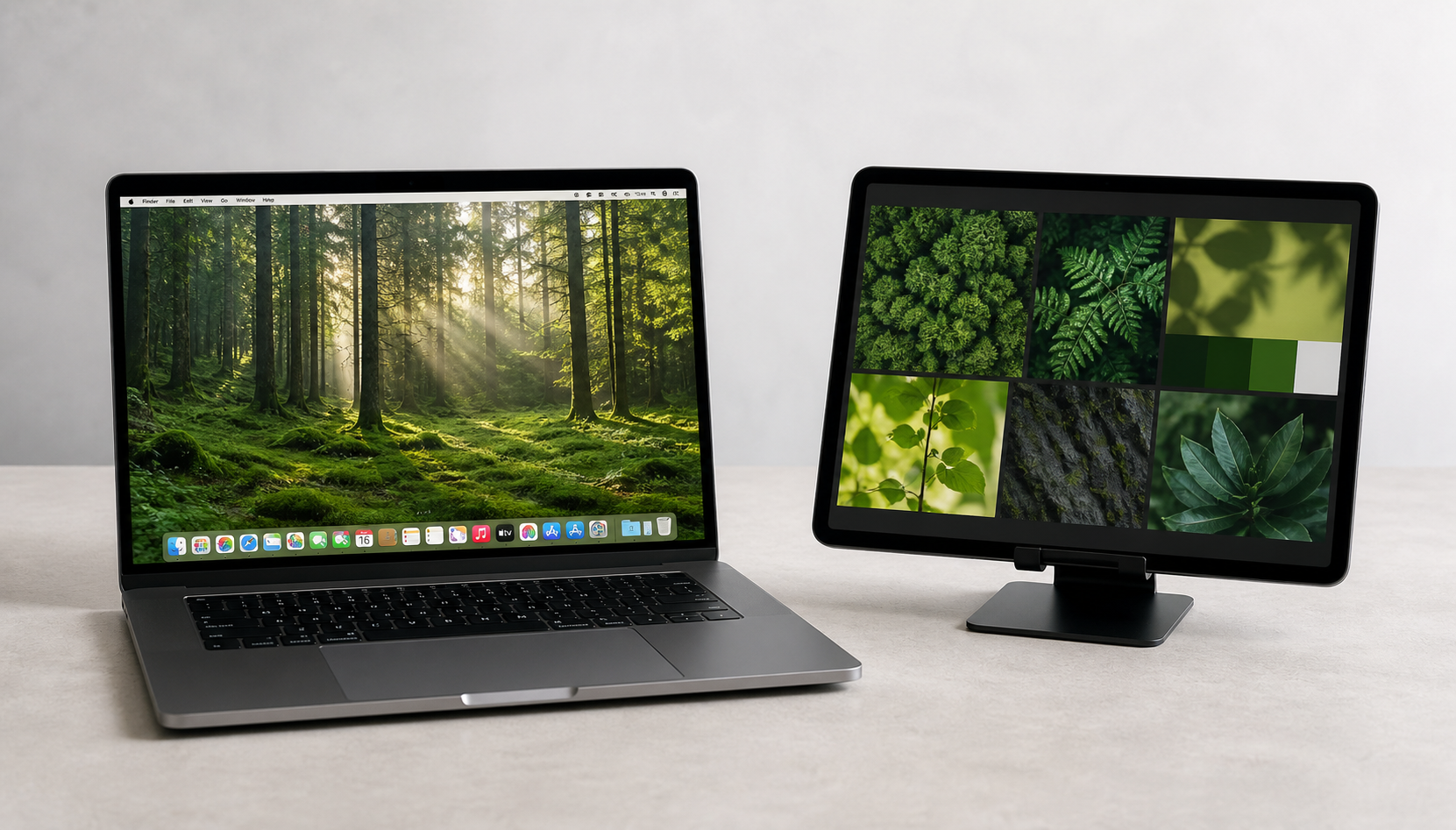
You can extend your MacBook desktop to a compatible phone, tablet or spare computer with BetterCast. Install the Mac app and the receiver for your second device, connect them, then arrange the virtual display in macOS. BetterCast is free and open source; no account is required.
Extend or mirror: what is the difference?
Extending creates additional workspace: you can keep your editor on the MacBook and notes on the other screen. Mirroring shows the same content on both screens. Choose extension when you want room for more windows, and mirroring when you want to share what is already on your screen.
What do you need?
- A Mac supported by the current BetterCast release.
- A compatible iPhone, iPad, Android phone or tablet, Mac, Windows PC or Linux receiver.
- Both apps running and a supported connection. Most mixed-platform setups use the same local network; supported Apple devices can connect directly peer-to-peer.
Check the current downloads and release notes for your exact devices. Do not assume an old device supports every build.
How do I extend my MacBook screen to a second display?
Install BetterCast on the MacBook, install the receiver on the second device, connect the two, then set the new display to Extend in System Settings. In full:
- Download and install BetterCast on the MacBook whose desktop you want to extend.
- Install the receiver on your second device. Use the App Store for iPhone or iPad, and the official release download for Android or desktop receivers.
- Open both apps. For a local-network connection, join the same network and allow local-network access when requested.
- On your Mac, allow Screen Recording so BetterCast can capture the display. Accessibility permission enables receiver input.
- Select the receiver in BetterCast and start the connection.
- Open System Settings → Displays on the Mac. Arrange the extra display to match its physical position and use an extended display rather than mirroring when you want separate workspace.
- Move a window past the corresponding edge of your MacBook screen to the new display.
How do I extend a Mac to two screens?
Connect two receivers at once. BetterCast gives each connected device its own virtual display at its own resolution, so a MacBook can drive a tablet and a phone at the same time, or a tablet and a spare computer. Add the second device the same way as the first, then arrange both in System Settings → Displays. How many you can run at once depends on your Mac and your connection.
How do I view two screens side by side on a Mac?
Arrange them in System Settings → Displays. Drag the blue rectangles so they sit in the same relative positions as the real screens, because that is what decides which edge your pointer crosses to move between them. If the second screen sits to the right of your MacBook on the desk but to its left in the arrangement, the pointer will leave from the wrong side. Drag the white menu bar onto a display to make it the main one.
Why is my second device not appearing?
Keep the receiver app open. Check local-network permissions and that both devices are on the same network. A guest or public Wi-Fi network may isolate devices even when its name is the same. Check whether a VPN or firewall is blocking discovery; allow the app rather than disabling your firewall permanently.
If the screen is black, recheck Screen Recording permission and restart the app after changing it. If motion is uneven, try a less congested connection or lower display settings. Resolution and frame rate depend on the hardware and connection; this guide is not a performance benchmark.
Can I use an iPhone instead of an iPad?
Yes. BetterCast supports compatible iPhones as receivers for your Mac desktop. A phone works well for a small reference window or chat; a tablet offers more room for reading and editing.
Can I extend a Windows or Linux desktop too?
Windows sending is currently in beta and requires the installer with its virtual display driver. Linux is currently a receiver only: it can display a Mac or Windows sender, but BetterCast does not currently extend a Linux desktop to a tablet.
Which alternative should I choose?
Apple Sidecar is an option for a compatible Mac and iPad. OpenDisplay is another free, open-source choice for Apple devices. BetterCast also provides receivers for Android, Windows and Linux. See our OpenDisplay comparison and Duet Display comparison.
Sources and scope
This is a BetterCast product guide, not an independent review. Setup and platform roles were checked against the BetterCast documentation on September 7, 2026. Apple's display arrangement instructions describe Sidecar's extended-display and mirroring controls. Always check current release requirements before installing.
Ready to try BetterCast?
Free, open-source, and works on every platform. Turn any device into a second monitor in under a minute.